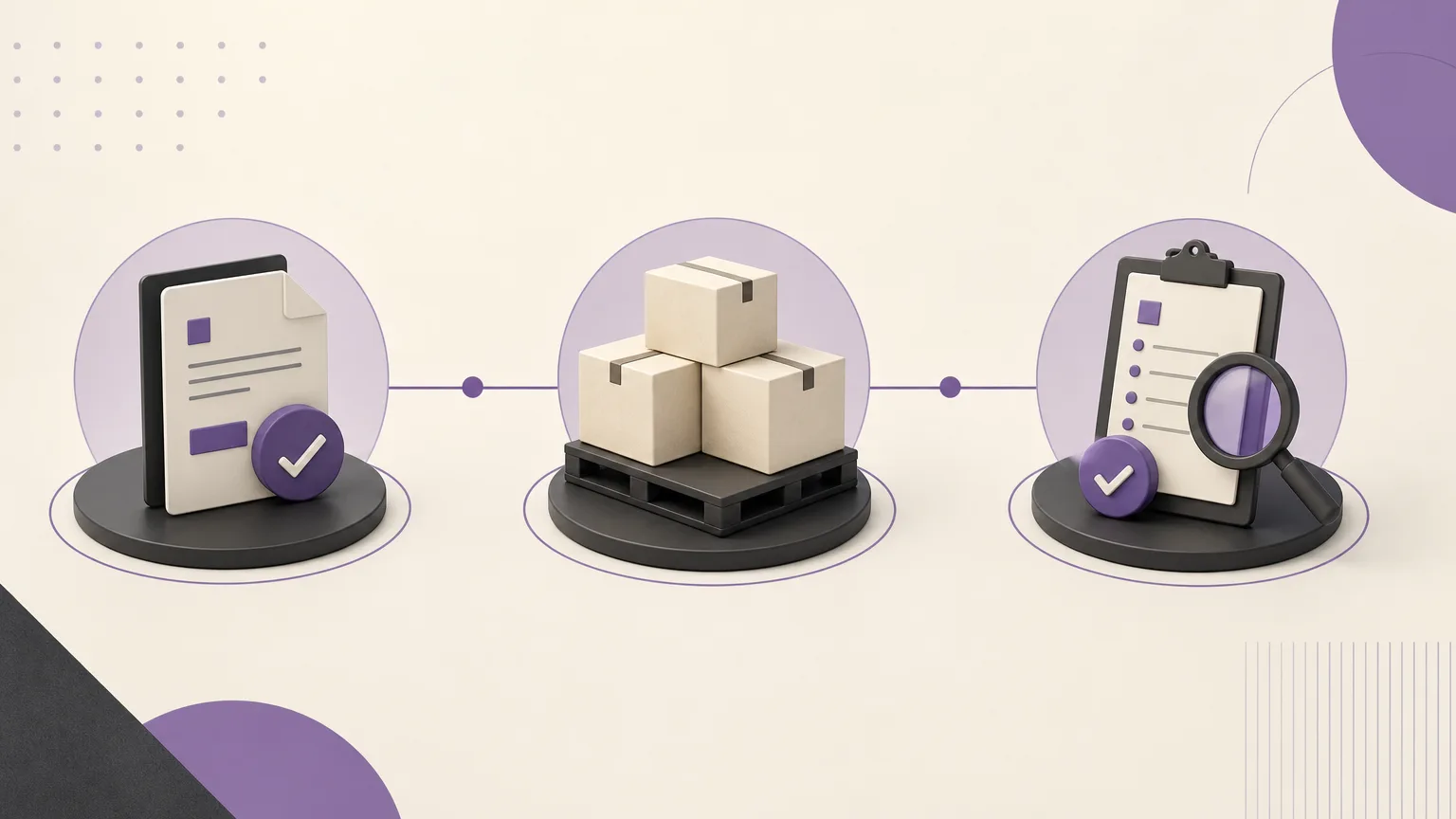
An order should not move into execution simply because someone believes it is ready or because an item appears to be in stock. The decision depends on the order status, the completeness of its details, the items and quantities involved, the responsible branch or team, and the permissions that govern the next action. When this context is scattered across files or separate channels, teams spend time repeating checks and following up on orders that still need clarification.
OrdertechERP connects sales, orders, inventory, accounting, reporting, and branches in one operating space. This gives sales and operations teams a shared view when reviewing orders and provides an operational AI assistant that connects order data to the next step according to the company’s setup and team permissions. It does not mean that every action is decided or performed automatically. The quality of the result depends on data quality, company configuration, and the permissions assigned to the team.
What makes an order ready for execution?
An order is ready for execution when its current status and available information support moving into a practical next stage, such as preparation, follow-up, or escalation for review. Readiness is not the same as stock availability alone. It is the alignment of several elements:
- Order status: Has the order reached the stage that allows the next action under the company’s workflow?
- Order details: Are the items, quantities, customer information, and responsible branch or team clear?
- Item availability: Does the inventory information appear consistent with what the order requires?
- Permissions: Is the user or team allowed to review, change the status, or direct the order?
- Company setup: Does the configured workflow reflect how the business currently handles orders and inventory?
If these elements do not align, the right action may be to request clarification or escalate the review rather than move directly to preparation.
Start with a shared review checklist
Before reviewing orders one by one, sales, operations, and inventory teams should agree on what “ready” means in their operating context. A useful checklist can include the following questions:
- What is the current order status, and what status is required before execution?
- Are the items and quantities specific, or are there notes that need interpretation?
- Do the order details align with the available inventory information and the responsible branch?
- Is any missing information preventing communication, preparation, or a later accounting step?
- Who has permission to approve the next action, and who should be informed if an issue appears?
A shared checklist reduces differences in interpretation. Sales may see an order as confirmed, while inventory may see an unavailable quantity or an unclear item detail. Using the same criteria in one operating space makes the reason for a delay, escalation, or next action easier to understand.
Match order status with inventory availability
Read the order status before focusing on quantity alone. An item may be available while the order is still not in a state that permits preparation. Conversely, an order may be in an appropriate status while the required quantity or item information remains unclear.
During the review, compare the items and quantities on the order with the inventory information available to the team. Pay particular attention to situations that need an additional check, such as a mismatch in item descriptions, insufficient quantity, or an unclear branch assignment. These signals do not necessarily indicate a system error. They indicate that the decision may need human review or that the underlying data should be updated.
Practical rule: do not treat an order as ready merely because it appears on a worklist. Treat it as ready to move when its status, details, item availability, company setup, and team permissions support the same action.
Move from validation to the next action
Once the review is complete, choose the action that matches the order’s condition. In practice, the next step usually falls into one of three paths:
- Follow-up: Use this path when the order needs communication or missing information before preparation, such as clarifying a quantity or confirming an operational detail.
- Preparation: Use this path when the status is appropriate, the details are clear, the item availability is consistent with the order, and the responsible team has the required permission.
- Escalation: Use this path when there is a conflict in status, inventory, or ownership, or when the decision requires a higher level of permission or another team’s review.
Record the reason for the action in clear language. “Waiting for item quantity clarification” is more useful than “blocked” because it tells sales, inventory, and the branch what needs to happen next.
How teams can work from the same order context
Sales
Sales checks that the recorded order details reflect what was agreed and that the information needed by operations is complete. When something is missing, the team should identify the specific detail rather than pass the order forward with a general comment.
Operations and inventory
These teams review whether preparation is practical and whether the available item information supports the order. The presence of an inventory figure should not be treated as a substitute for understanding the order status or the responsible branch.
Accounting and reporting
Consistent statuses and clearly recorded reasons make order follow-up and business reporting easier. Connecting orders with accounting and reporting in one operating space can reduce the manual effort of collecting the same information again, provided that data is entered consistently.
Branches
Branches need a clear view of the order, its items, its status, and the owner of the next action. This reduces handoffs between teams that do not share the same context.
The role of the operational AI assistant
OrdertechERP’s operational AI assistant can connect order information and related data to a next step according to the company’s setup and team permissions. Its practical value is strongest when its output is used as a starting point for review: it can help organize the context, while the user verifies the status, inventory, and order details before approving an action.
The assistant should not be treated as a replacement for operational controls. If the data is incomplete, the company setup does not reflect the current workflow, or the user lacks the right permission, the result may need correction or escalation. Make each recommendation understandable and connect the decision to a specific reason that the team can follow up on.
Checks before approving an action
- Confirm that the status definitions in the system match the company’s current policy.
- Check that item and quantity data is sufficiently current for the decision being made.
- Verify that the user has the required permission, not merely visibility of the order.
- Do not treat orders ready for preparation as equivalent to orders that still need follow-up.
- Use a clear reason when holding or escalating an order.
- Review recurring conflicts or delays to improve company setup and data-entry practices.
Conclusion
Reviewing orders ready for execution is not a search for a button that moves every order forward. It is a check that status, order data, inventory, permissions, and company workflow all support the same next action. OrdertechERP brings sales, orders, inventory, accounting, reporting, and branches into one operating space, while its operational AI assistant can help connect order data to the next step within the configured setup and permissions. The quality of the decision still depends on reliable data, a clear workflow, and disciplined human review. With that approach, teams can choose follow-up, preparation, or escalation on a clear basis while reducing the manual work involved in collecting context across departments.